MOV to MP4: Complete Guide to Converting Video Files Easily
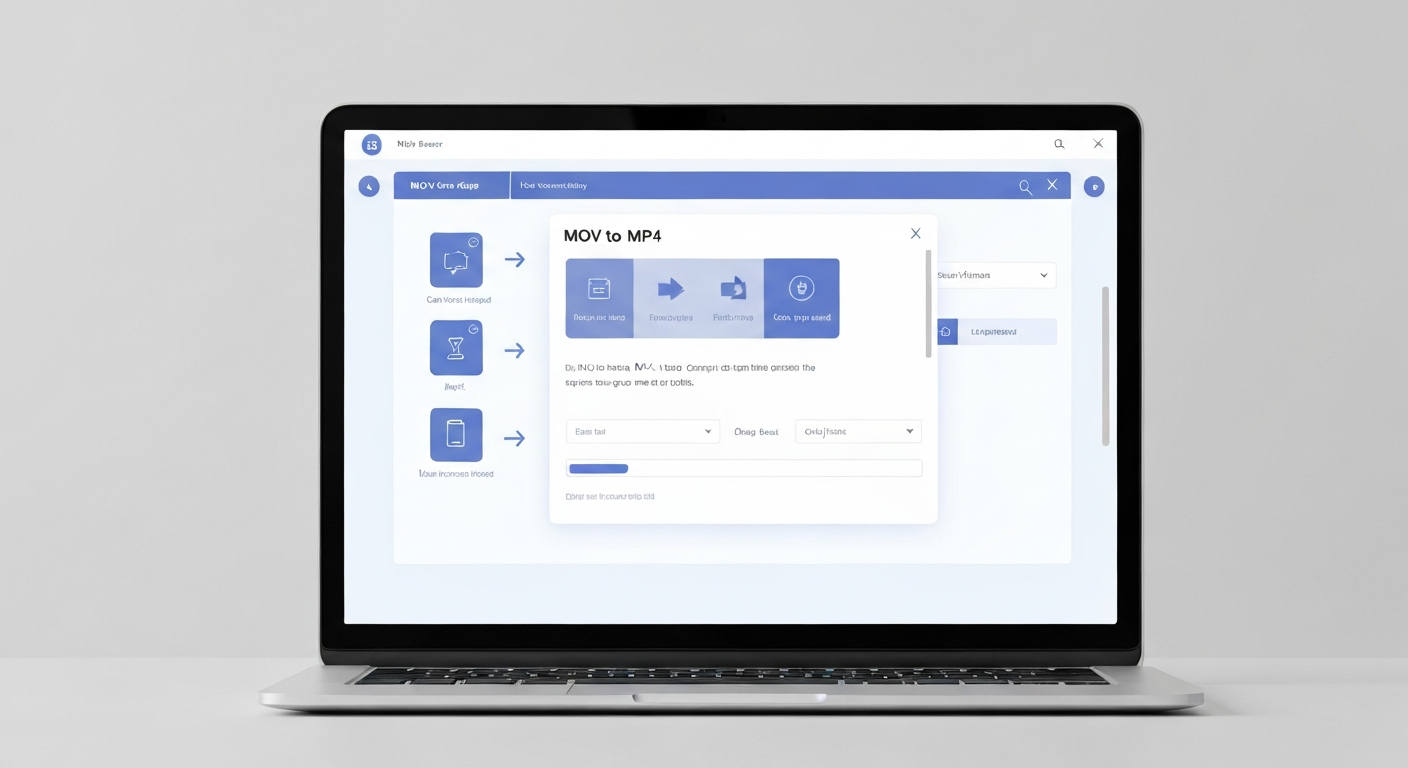
Understanding MOV and MP4 File Formats
When it comes to video file formats, MOV to MP4 conversion is one of the most common tasks users encounter. Both formats serve different purposes and have unique characteristics that make them suitable for various applications.
MOV files, developed by Apple, are primarily associated with QuickTime Player and are widely used in professional video editing environments. These files often contain high-quality video and audio streams but can be quite large in size. On the other hand, MP4 files are more universally compatible and offer excellent compression without significant quality loss, making them ideal for web streaming, mobile devices, and general sharing purposes.
The need to convert MOV to MP4 arises frequently because MP4 files are supported by virtually every device, media player, and platform available today. Whether you're sharing videos on social media, uploading content to websites, or ensuring compatibility across different devices, MP4 format provides the flexibility and accessibility that MOV files sometimes lack.
Why Convert MOV to MP4?
There are several compelling reasons why you might need to perform a MOV to MP4 conversion:
- Universal Compatibility: MP4 files work seamlessly across Windows, Mac, Linux, iOS, Android, and virtually every smart device or media player
- Smaller File Sizes: MP4 format typically produces smaller files while maintaining good video quality, making them easier to store and share
- Web Optimization: Most websites and streaming platforms prefer MP4 format for faster loading times and better user experience
- Social Media Requirements: Popular platforms like YouTube, Facebook, Instagram, and TikTok all support MP4 as their preferred video format
- Storage Efficiency: Converting MOV to MP4 can free up significant storage space on your devices without compromising viewing quality
Understanding these benefits helps explain why MOV to MP4 conversion has become such a standard practice in digital media management.
Methods to Convert MOV to MP4
There are multiple approaches to converting your MOV files to MP4 format, each with its own advantages depending on your specific needs, technical expertise, and available resources.
Online MOV to MP4 Converters
Online conversion tools offer the most convenient solution for MOV to MP4 conversion, especially for users who need quick results without installing software. These web-based platforms typically work by uploading your MOV file to their servers, processing the conversion in the cloud, and providing a download link for the converted MP4 file.
The main advantages of online converters include:
- No software installation required
- Accessible from any device with internet connection
- Usually free for basic conversions
- Simple, user-friendly interfaces
- Support for batch conversions on premium plans
However, online MOV to MP4 converters also have limitations such as file size restrictions, slower processing times for large files, and potential privacy concerns when uploading sensitive content to third-party servers.
Desktop Software Solutions
Desktop applications provide more control and advanced features for MOV to MP4 conversion. Popular options include VLC Media Player, HandBrake, FFmpeg, and Adobe Media Encoder. These tools typically offer:
- Higher processing speeds for large files
- Advanced customization options for video quality, resolution, and compression settings
- Batch processing capabilities
- No internet connection required
- Better privacy and security for sensitive files
Professional video editors and content creators often prefer desktop solutions for their MOV to MP4 conversion needs because they provide greater flexibility in optimizing output settings for specific use cases.
Mobile Apps for MOV to MP4 Conversion
Smartphone apps have made MOV to MP4 conversion possible directly on mobile devices. These apps are particularly useful when you need to convert and share videos quickly while on the go. Many mobile conversion apps offer features like:
- Direct integration with camera roll and cloud storage
- Simple one-tap conversion processes
- Built-in sharing options to social media platforms
- Basic editing tools for trimming and adjusting videos
Step-by-Step Conversion Process
Converting MOV to MP4 using online tools is straightforward and can be completed in just a few simple steps:
Step 1: Choose Your Conversion Tool
Select a reliable online MOV to MP4 converter that meets your needs in terms of file size limits, conversion speed, and output quality options.
Step 2: Upload Your MOV File
Click the upload button and select your MOV file from your device. Some converters also support drag-and-drop functionality or allow you to import files from cloud storage services.
Step 3: Configure Output Settings
Most converters offer basic settings adjustment options. You can typically choose the output quality, resolution, and compression level for your MOV to MP4 conversion.
Step 4: Start the Conversion
Click the convert button to begin the process. The time required depends on your file size and the converter's processing power.
Step 5: Download Your MP4 File
Once conversion is complete, download your new MP4 file. Most services automatically delete uploaded files after a certain period for privacy protection.
Optimization Tips for Best Results
To achieve the best results when performing MOV to MP4 conversion, consider these optimization strategies:
Quality vs. File Size Balance: Choose conversion settings that provide the right balance between file size and video quality for your intended use. Higher bitrates produce better quality but larger files, while lower bitrates reduce file size but may impact visual clarity.
Resolution Considerations: If your original MOV file is in 4K but you only need it for web sharing, consider converting to 1080p to significantly reduce file size while maintaining excellent quality for most viewing scenarios.
Audio Settings: Pay attention to audio quality settings during MOV to MP4 conversion. For most purposes, 128-192 kbps audio bitrate provides good quality while keeping file sizes manageable.
Frame Rate Optimization: Maintain the original frame rate unless you have specific requirements. Changing frame rates can affect video smoothness and may not always result in better compression.
Common Issues and Troubleshooting
During MOV to MP4 conversion, you might encounter various issues. Here are common problems and their solutions:
Conversion Failures: If your conversion fails, check if your MOV file is corrupted or if it exceeds the converter's file size limits. Try using a different conversion tool or compressing the file before conversion.
Audio Sync Issues: Sometimes the audio and video may become out of sync during conversion. This usually occurs with variable frame rate source files. Use professional software that can handle VFR content or convert to constant frame rate first.
Quality Loss: Significant quality degradation might indicate inappropriate compression settings. Experiment with higher bitrate settings or try different converters that offer better encoding algorithms.
Long Processing Times: Large MOV files can take considerable time to convert. Consider compressing the source file or using local desktop software for faster processing of very large files.
Choosing the Right Conversion Tool
Selecting the appropriate tool for your MOV to MP4 conversion needs depends on several factors:
File Size Requirements: For large files or professional work, desktop software usually provides better performance and fewer limitations compared to online converters.
Frequency of Use: If you regularly convert videos, investing in professional software or premium online service subscriptions might be more cost-effective than using free tools with limitations.
Quality Standards: Professional content creators should prioritize tools that offer advanced encoding options and preserve maximum quality during the MOV to MP4 conversion process.
Privacy Concerns: For sensitive or confidential video content, local desktop software ensures your files remain private and aren't uploaded to external servers.
Best Practices for MOV to MP4 Conversion
Following these best practices will help ensure successful MOV to MP4 conversions every time:
- Always keep backups of your original MOV files before conversion
- Test different quality settings on a small sample before processing large batches
- Consider your target platform's requirements when choosing output specifications
- Monitor file sizes to ensure they meet your storage and sharing requirements
- Verify converted files play correctly on intended devices before deleting originals
By implementing these practices, you can streamline your MOV to MP4 conversion workflow and achieve consistent, high-quality results that meet your specific needs and technical requirements.
Frequently Asked Questions
Is there any quality loss when converting MOV to MP4?
Quality loss during MOV to MP4 conversion depends on the settings used. If you choose appropriate bitrate and resolution settings that match or are close to your source file specifications, quality loss will be minimal. However, since conversion typically involves re-encoding, some minor quality degradation is inevitable. Using high-quality conversion tools and optimal settings can minimize this loss significantly.
How long does it take to convert MOV to MP4?
Conversion time varies based on several factors including file size, video resolution, chosen quality settings, and the processing power of your conversion tool. Online converters typically take 2-10 minutes for standard files, while desktop software can be faster, especially for large files. A 1GB MOV file usually takes 3-8 minutes to convert to MP4 using most online tools.
Can I convert MOV to MP4 for free?
Yes, there are many free options available for MOV to MP4 conversion. Online converters like those available on this-2-that.com offer free conversion services with reasonable file size limits. Desktop software like VLC Media Player and HandBrake also provide free conversion capabilities with advanced features. Free options are suitable for most personal use cases, though professional users might benefit from premium tools with additional features.